
The web app ​
The CodeLotse web app is where you see reviews, findings and the work waiting for you, and where administrators set up repositories and integrations. This page shows how to sign in, how the navigation is organised and which personal settings you have.
Sign in ​
Open the address of your CodeLotse instance, or codelotse.com for the cloud edition.
- Continue with GitHub signs you in with your GitHub account. CodeLotse reads your organisations and repository permissions from GitHub at every sign-in.
- Continue with followed by a company name signs you in through your company's identity provider (OpenID Connect). It appears only when an administrator set one up, and you get access only if one of your groups is mapped to a role (Sign-in groups).
A session lasts at most eight hours. CodeLotse only uses your name and your access rights to decide what you can see and do.
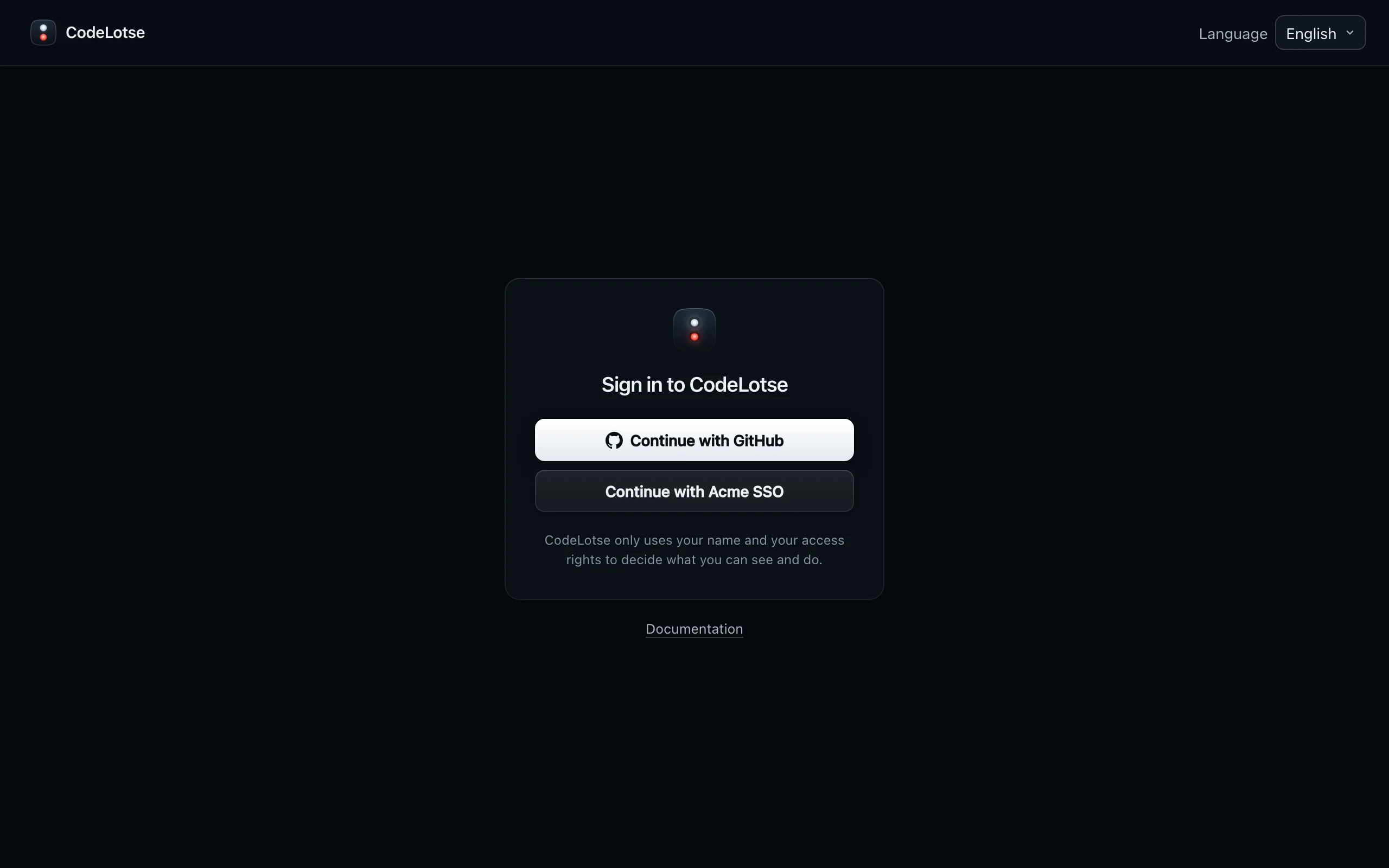
If the page shows Finish setup instead, the instance has not been set up yet; see the Quickstart.
Choose an organisation ​
Everything in CodeLotse belongs to an organisation. After sign-in you land on the Overview of your first organisation, or on its Inbox if you chose that as your start page (Inbox and overview).
- If you belong to several organisations, the organisation menu at the top of the sidebar switches between them. From seven organisations on it has a search field.
- If you see Welcome and "No organisation is available for your account yet", the GitHub App is not installed on any organisation you belong to, or you have no role in one yet. Ask an administrator.
- You only see repositories you have access to on the code host. Organisation administrators see all repositories of the organisation.
Find your way around ​
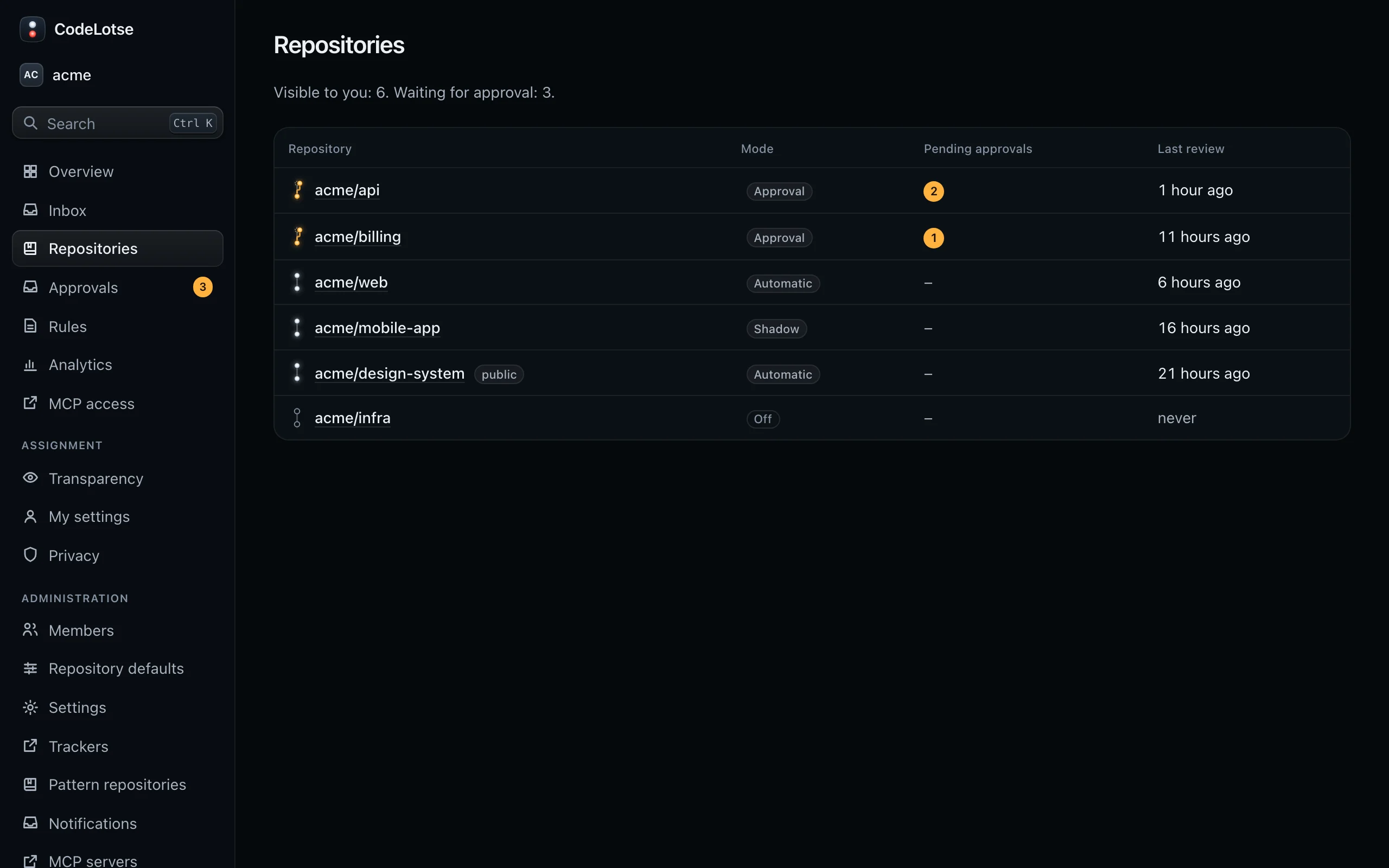
The sidebar shows what your role allows. Items without a section are for daily work; the Assignment and Administration sections follow below.
| Item | For | Who sees it |
|---|---|---|
| Overview | Reviews of the last days, work waiting, health of the installation | Everyone |
| Inbox | Open pull requests across your repositories, the ones that need you first | Everyone |
| Repositories | Every repository with its mode and role; each opens to its policy, reviews and other tabs | Everyone |
| Approvals | Outputs waiting to be posted, with a count | Organisation administrators |
| Rules | Rules and learnings for every repository of the organisation | Organisation administrators |
| Analytics | Team metrics, costs and analytics settings | Organisation administrators |
| My metrics | Your own metrics, shown instead of Analytics when personal metrics are allowed and you opted in | Members |
| MCP access | Personal access tokens for coding agents | Everyone |
| Assignment › Transparency | How reviewer suggestions work in this organisation | Everyone |
| Assignment › My settings | Opt-out, workload view and availability for reviewer suggestions | People signed in with GitHub |
| Assignment › Privacy | Employment questions, works agreement, retention | Organisation administrators |
| Administration › Members | Everyone who has signed in, with their role | Organisation administrators |
| Administration › Repository defaults | Settings every repository follows unless customised | Organisation administrators |
| Administration › Settings | Administrators, terminology, sign-in groups, model keys, code hosts, model routing | Organisation administrators |
| Administration › Trackers | Jira, Linear and Azure Boards | Organisation administrators |
| Administration › Pattern repositories | Reference code for every review | Organisation administrators |
| Administration › Notifications | Slack, Microsoft Teams, e-mail and webhook channels | Organisation administrators |
| Administration › MCP servers | External context for reviews | Organisation administrators |
| Administration › Instance overview, Setup, Instance settings, Legal sign-off, Evaluation runs | The self-hosted instance | Instance administrators |
Repository tabs ​
A repository opens on its Policy tab. The other tabs are Rules, Reviews, Triage, Fix runs, Checks, Suppressions, Assignments, Analytics, Dry run and Code index, plus Approvals for maintainers, reviewers and administrators. The page header shows the repository's mode, its visibility and Your role.
Use the command menu ​
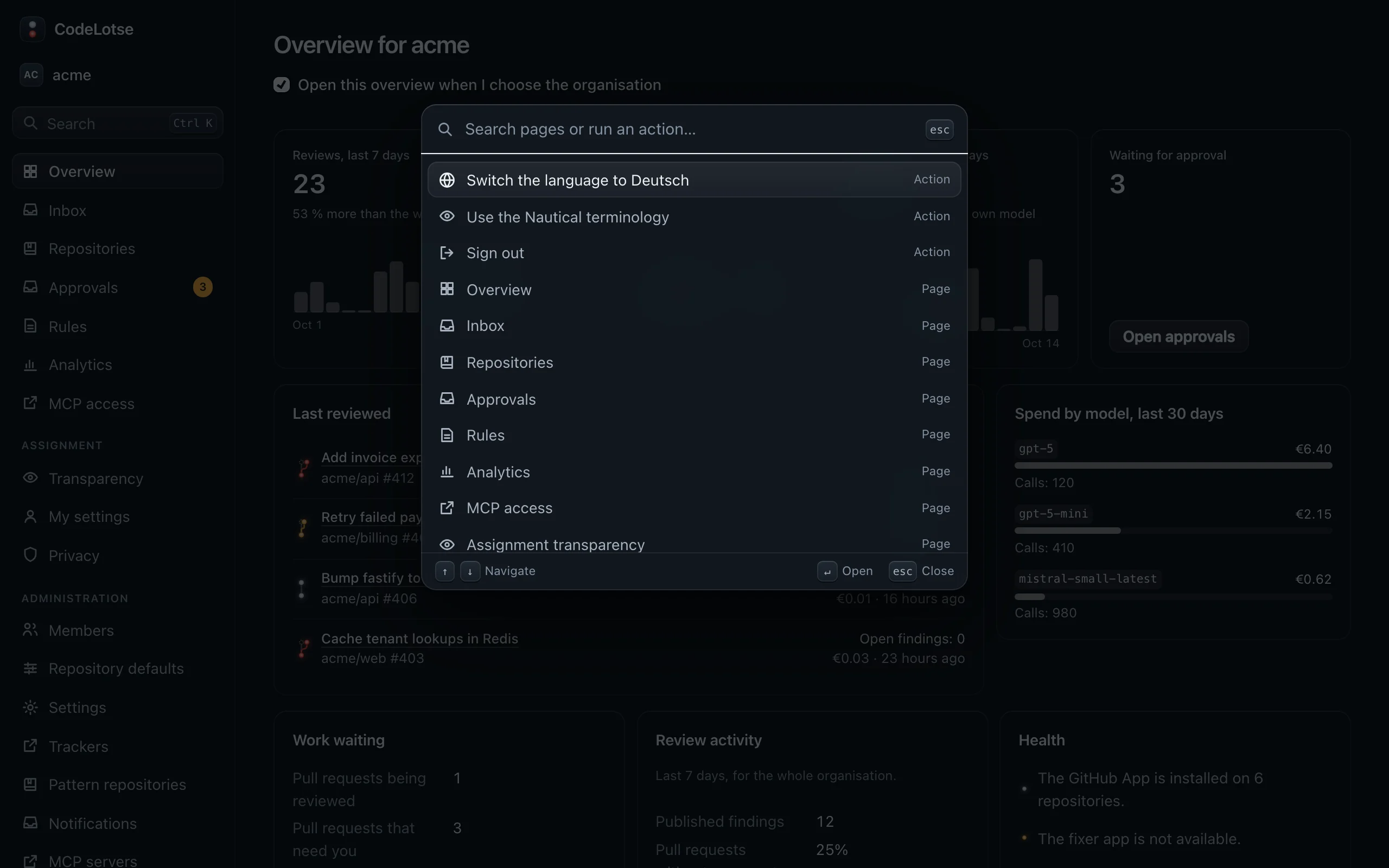
Press Ctrl K (⌘ K on a Mac), or select Search in the sidebar, to open the command menu.
- Type to search pages, repositories and organisations. Arrow keys move, Enter opens, Esc closes.
- Without a search term it lists the pages you opened recently.
- Actions: switch the language, switch the terminology, sign out, and actions of the current page, such as Run review again on a failed review or opening the pull request on the code host.
Terminology, language and theme ​
Open the account menu at the bottom of the sidebar (your name and avatar):
| Setting | Options |
|---|---|
| Language | English or Deutsch. The default follows your browser. |
| Terminology | The words for review states. Organisation default uses what your administrator chose; Plain shows "No issues, Worth a look, Changes needed"; Nautical shows "On course, Drifting, Off course". |
| Notifications on this device | Push notifications on this phone or computer; see Phone and push notifications. |
| Sign out | Ends the session and turns off push notifications on this device. |
These settings are stored in your browser, so set them on each device. The light or dark theme follows the setting of your operating system.
If you signed in with a company account, the account menu notes that features which need a GitHub account, such as personal assignment settings, are not available.
Install the app ​
CodeLotse is an installable web app. On a phone or a computer you can add it to the home screen or install it from the browser; it then opens in its own window and can show push notifications. See Phone and push notifications.
When something is missing ​
| You see | Meaning |
|---|---|
| No access | Your role does not allow this page. Ask an organisation administrator or an instance administrator. |
| Off the chart. | The page does not exist or has moved. Use Search or go to the start page. |
| The organisation is read-only at the moment. | Changes are paused for this organisation. You can still read everything. |
| Your session has ended. | Sign in again. Sessions last at most eight hours. |