
Organisation settings ​
The Settings page of an organisation holds who administers it, the words used for review states, how company accounts get roles, the model keys, the code hosts other than GitHub and the model routing. Only organisation administrators can open it, under Administration › Settings. Every change is written to the audit log.
The page is titled "Settings for" and the organisation name, with these sections:
| Section | Content |
|---|---|
| Administrators | The GitHub admin team |
| Terminology | Plain or nautical words for review states |
| Sign-in groups | Roles for people who sign in with a company account |
| Language model credentials | API keys of your model providers |
| Code hosts | GitLab, Azure DevOps, Bitbucket, Gitea and Forgejo connections |
| Model routing | Which key and model serve each tier, and budgets |
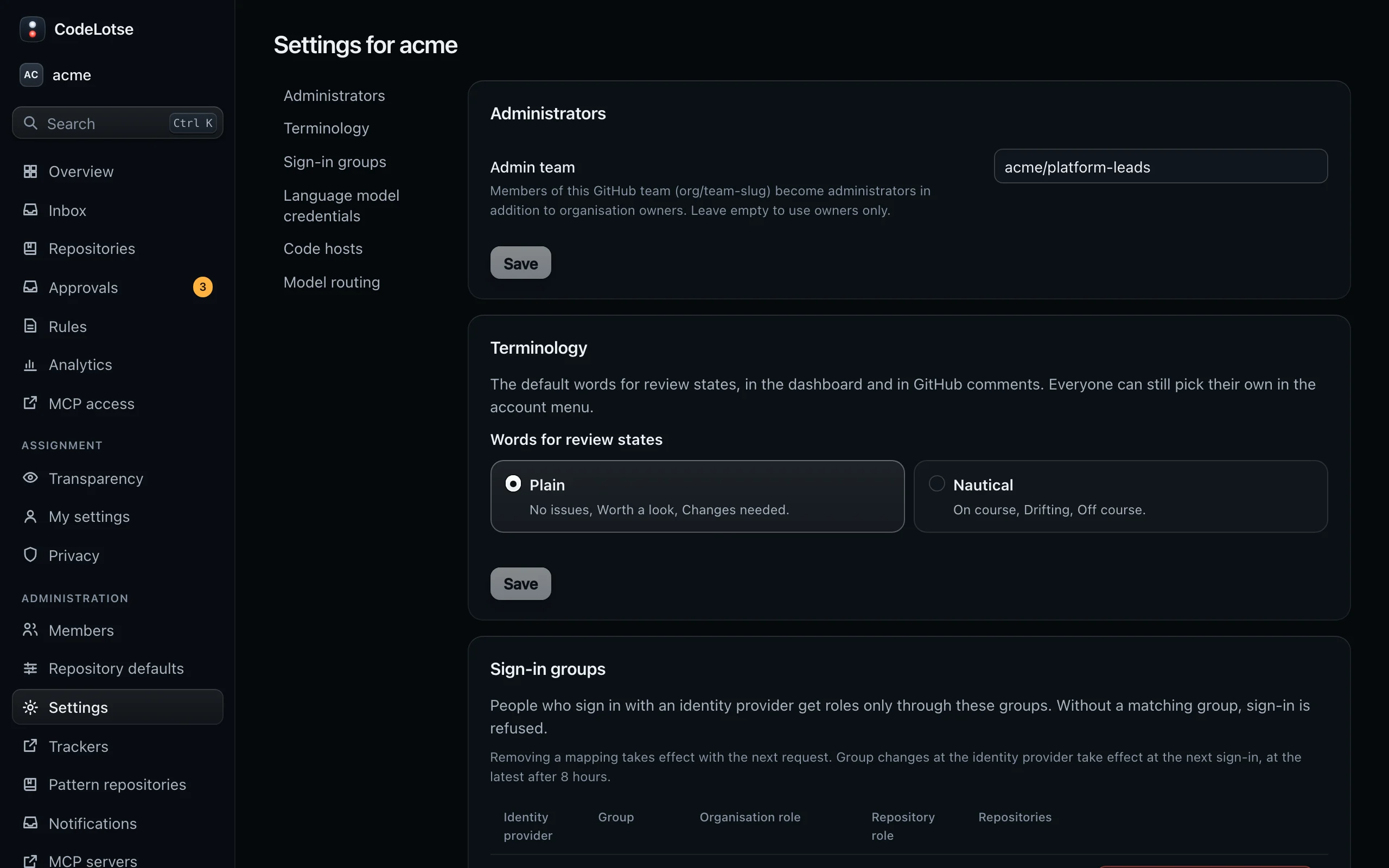
Other organisation-wide pages are in the Administration section of the sidebar: Members, Repository defaults, Trackers, Pattern repositories, Notifications and MCP servers.
Administrators ​
For GitHub organisations, the owners of the GitHub organisation are always administrators in CodeLotse. To make more people administrators without making them GitHub owners, enter a GitHub team as Admin team, written as org/team-slug, for example acme/platform-leads. Members of that team become administrators when their access is next refreshed from GitHub, at the latest at their next sign-in. Leave the field empty to use owners only.
People who sign in with a company account become administrators through a sign-in group with the organisation role Administrator of the organisation.
What administrators may do is listed in Members and roles.
Terminology ​
CodeLotse names the state of a review in two ways. Choose the default for the organisation under Words for review states:
| Option | Words |
|---|---|
| Plain (default) | No issues, Worth a look, Changes needed |
| Nautical | On course, Drifting, Off course |
The choice applies to the web app and to the comments and status CodeLotse posts on the code host. Each person can still choose their own words in the web app under Terminology in the account menu; comments always use the organisation default.
Sign-in groups ​
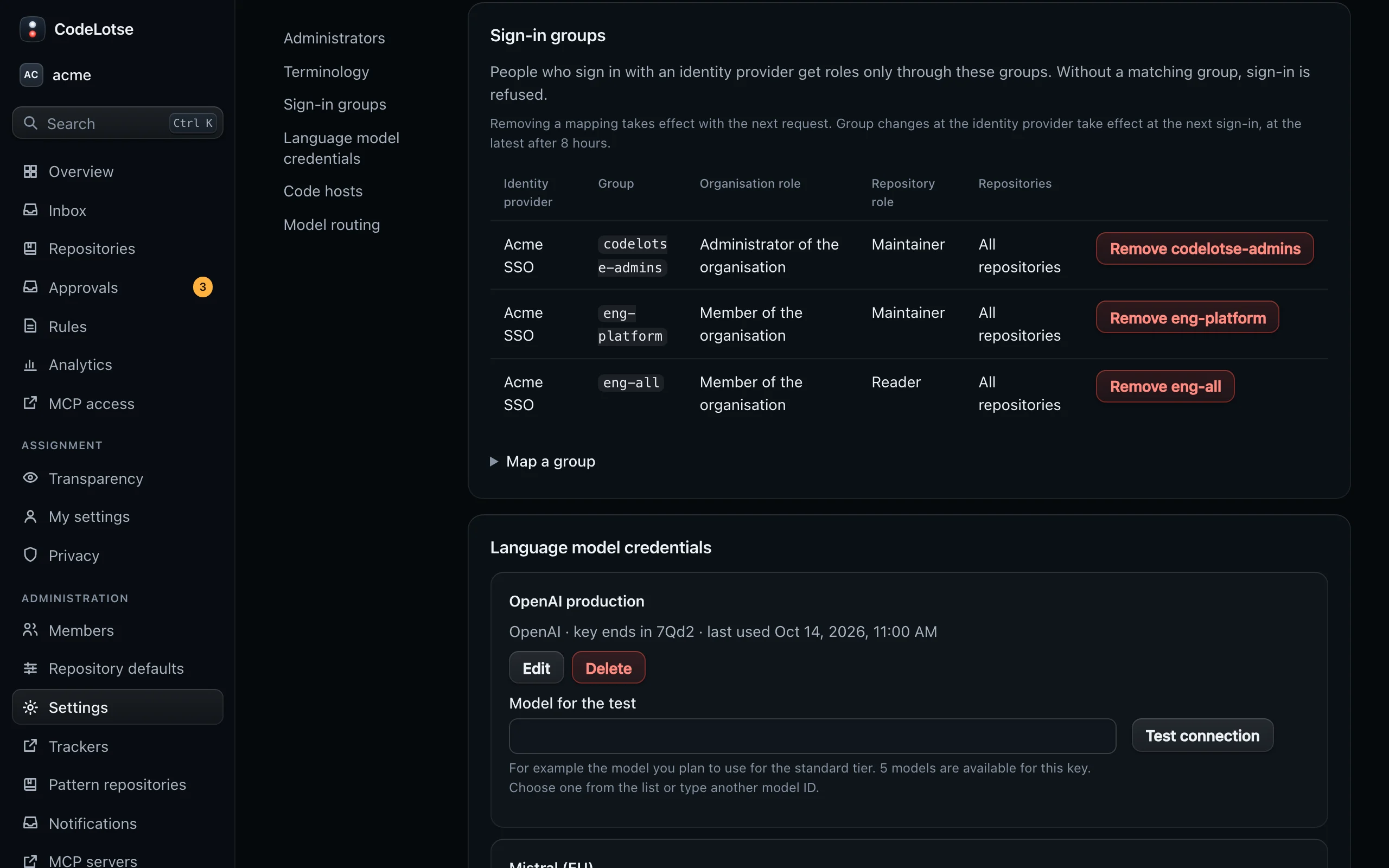
When an instance administrator has added an identity provider (OpenID Connect, for example Microsoft Entra ID, Keycloak, Okta or Dex), people can sign in with their company account. They get roles only through sign-in groups; without a matching group, sign-in is refused.
To map a group:
- Select Map a group.
- Choose the Identity provider and enter the Group exactly as it appears in the provider's groups claim.
- Choose Repositories: All repositories or one repository.
- Choose the Organisation role: Administrator of the organisation or Member of the organisation. A mapping for one repository grants membership only.
- Choose the Repository role: No repository access, Maintainer, Reviewer or Reader.
- Save.
A person in several mapped groups gets the highest role of all matching mappings. Removing a mapping takes effect with the next request. Group changes at the identity provider take effect at the person's next sign-in, at the latest after eight hours.
If the section says "No identity provider is available for this organisation yet", ask your instance administrator to add one (SSO / OIDC).
Code hosts ​
GitHub repositories come through the GitHub App. To review repositories on another code host, connect it here:
- Select Connect a code host and choose the Platform: GitLab, Azure DevOps, Bitbucket Cloud, Bitbucket Data Center, Gitea or Forgejo.
- Enter a Name, the Base URL and the Scope: groups, projects, workspaces or single repositories, one per line. The form shows an example for each platform.
- Choose the Authentication and enter the Access token (or the Microsoft Entra application for Azure DevOps). The hint lists the scopes the token needs.
- Save. CodeLotse shows the Webhook secret once, with step-by-step instructions for adding the webhook at the code host. Copy it before you close the dialog and confirm with I have stored the secret.
- Select Sync now to check the token and import the repositories in scope.
Each connection shows its status (Connected, Not synced yet or Connection failed), the bot account, the last sync and the last error. Rotate webhook secret issues a new secret and invalidates the old one. The details for each platform are in Code hosts, and what each one supports is in the feature parity matrix.