
Trackers, notifications and MCP servers ​
CodeLotse connects to the tools around your code host: work trackers for issues and acceptance criteria, notification channels for short notices, and MCP servers for review context and for coding agents. Each has its own page under Administration in the sidebar and needs the organisation administrator role. Every change is written to the audit log.
Trackers ​
Administration › Trackers connects Jira (Cloud and Data Center), Linear and Azure Boards. Keys such as ABC-123 or AB#123 in pull requests then link tracker issues, their acceptance criteria feed the acceptance criteria check, and CodeLotse can keep labels and statuses in step.
Connect a tracker ​
- Select Add connection and choose the Tracker.
- Enter a Name and the Site or organisation URL, for example
https://your-site.atlassian.netorhttps://dev.azure.com/your-organisation. - Choose the Sign-in method and enter the credential: an account email and API token, an OAuth 2.0 app, a personal access token, an API key or a Microsoft Entra application, depending on the tracker.
- Save. CodeLotse shows the Webhook URL and the Webhook secret. The secret is shown only once: add the webhook at the tracker right away, as the dialog describes. For Linear, paste Linear's signing secret into Linear signing secret instead.
- For a Jira OAuth app, select Authorise with Atlassian. The connection waits with Waiting for authorisation until you have.
- Select Test connection. It reports the account CodeLotse is connected as.
Choose what is synchronised ​
Open Edit settings and set the Sync settings:
| Setting | Meaning |
|---|---|
| Project keys | Comma-separated, for example ABC, OPS. Keys of other projects are ignored. For Azure Boards, project names. |
| Acceptance criteria field | A Jira field ID such as customfield_10042 or an Azure Boards field. Empty reads the criteria from the description. |
| Writing | Off: only link issues, Trial: plan and log changes, write nothing, or On: write changes. Start with the trial. |
| Who owns the labels | The tracker, the repository, or both. |
| When both sides changed | The later change wins, the tracker wins, the repository wins, or both changes are kept. |
| Label mapping | One per line: repository label = tracker label. component:Name maps a Jira component. |
| Status when a pull request opens, Status when it is merged, Status when it is closed without merging | Tracker statuses to move to. Empty keeps the status. |
| Post the pull request link on the tracker issue | Adds a link to the pull request on the tracker issue. |
| Create tracker issues for new repository issues in project | Creates a tracker issue for each new repository issue, or links a similar existing one. |
Check mapping tests the unsaved settings against the tracker: projects, fields, components, labels and statuses. Link existing pull requests and issues scans what is already open and links every key it finds. New webhook secret replaces the secret, and Disable pauses the connection.
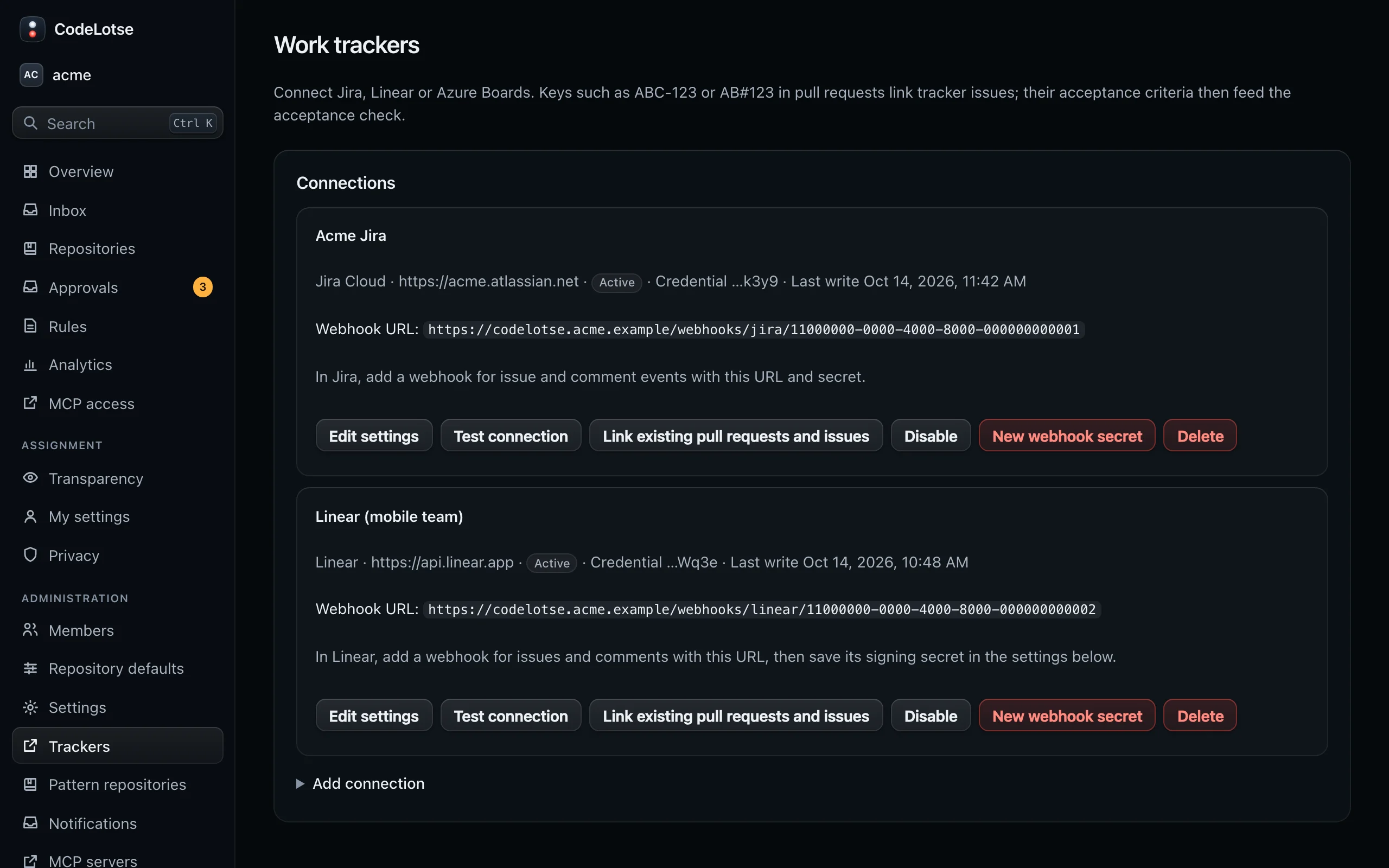
The details for each tracker, the webhooks and the limits are in Trackers.
Notifications ​
Administration › Notifications sends short notices to Slack, Microsoft Teams, e-mail or your own HTTPS endpoint. Messages contain only metadata such as the repository, the pull request number and title, never code or findings.
Add a channel ​
Select Add channel and choose the Channel type:
Type What to enter Slack incoming webhook The webhook URL, which starts with https://hooks.slack.com/Microsoft Teams workflow The URL of the "When a Teams webhook request is received" trigger of a Teams workflow E-mail Up to 20 Recipients, one per line. Needs an SMTP server on the instance. Signed HTTPS webhook Any httpsURL. Each request is signed; the signing secret is shown once.Enter a Name and tick the Events:
- LLM budget alert
- Review failed
- Outputs waiting for approval (at most hourly)
- Fix pull request ready
- CI failure analysis posted
Save, then select Send test.
Each channel shows its target, the last test and Recent deliveries with their status. Disable pauses a channel; Rotate signing secret replaces the secret of a webhook channel. How to verify signatures and set up SMTP is in Notifications.
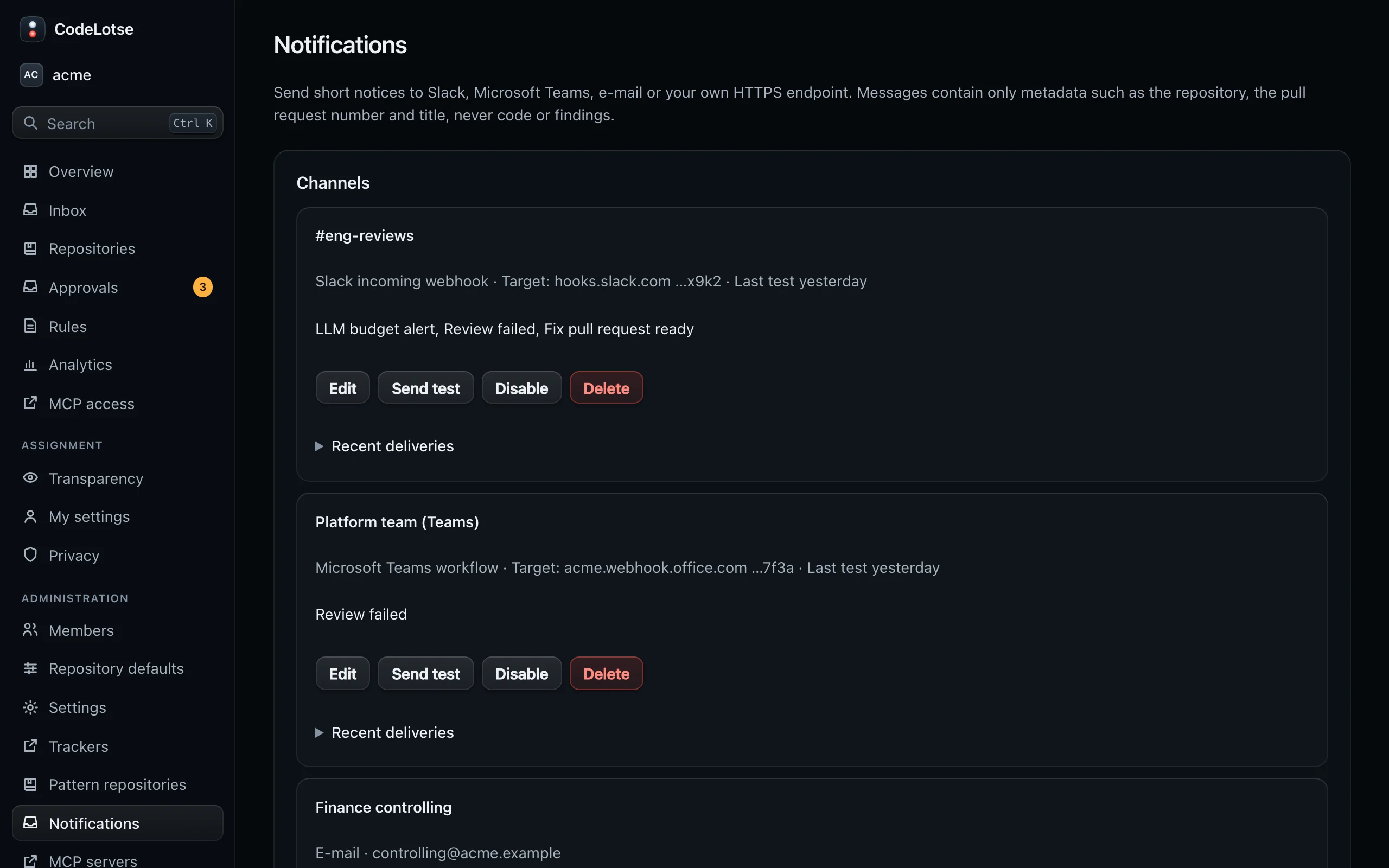
Each person can also get push notifications on their own phone or computer, independent of these channels (Phone and push notifications).
MCP access for coding agents ​
CodeLotse is an MCP server that coding agents such as Claude Code, Cursor or VS Code can read reviews, findings, rules and indexed code from. It is off by default. To turn it on, open MCP access in the sidebar and tick Allow MCP access for this organisation.
Members then create personal access tokens on the same page. A token sees what its owner sees, read-only. As an administrator you see the tokens of all members and can Revoke any of them. Turning the switch off stops every token at once. See MCP server for coding agents.
MCP servers ​
Administration › MCP servers registers Model Context Protocol servers of your organisation, such as an internal wiki or ticket system, so reviews can look up context there. Only tools you allowlist are called, only with short search terms derived from the pull request, and the answers are treated as untrusted data. MCP servers are never used for public repositories.
- Select Register server and enter the Name, the Server URL (
httpsonly) and the Authentication: None, Bearer token or Custom header. - Confirm "Search terms derived from pull requests are sent to this server."
- Select Discover tools, choose up to 20 tools and adjust the Description for the model. Tools the server marks as write-capable need an extra confirmation. Select Save allowlist.
- In each repository's policy, set External context (MCP) to On and choose up to five servers.
Recent calls lists each call with tool, status, size and duration; arguments and results are never stored. When a server changes a tool after you approved it, CodeLotse stops calling it until you discover and save again.
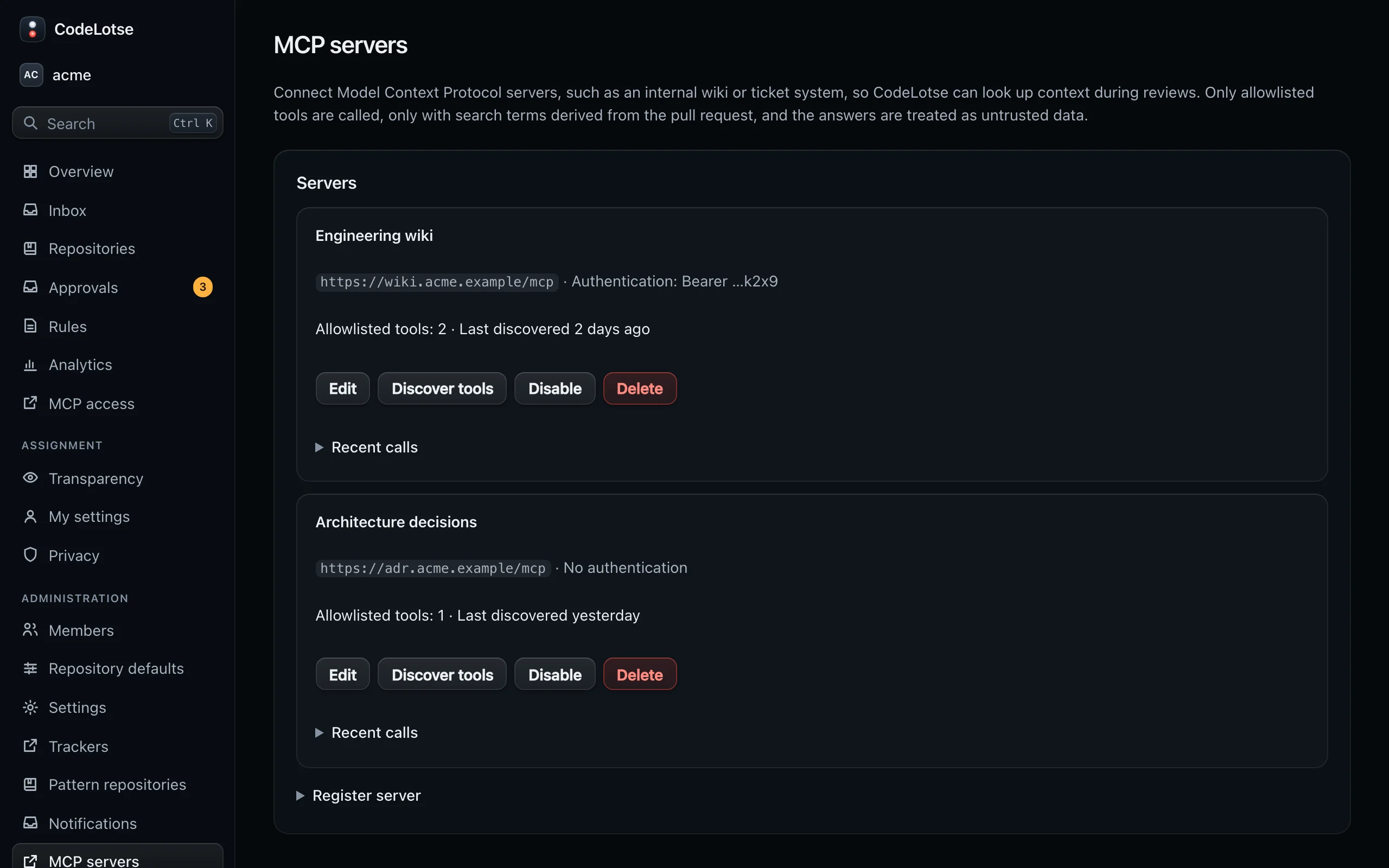
This feature waits for its security sign-off and needs to be allowed by the instance. Until then, the page shows a notice and nothing can be changed. See MCP context for reviews.