
Quickstart (Cloud) ​
This page takes you from nothing to the first review on CodeLotse Cloud. You need to be an owner of the GitHub organisation (or the account) you want to connect, and an API key of a model provider.
1. Install the GitHub App ​
Open app.codelotse.com/signup and choose Install on GitHub. On GitHub, pick the organisation or account and the repositories CodeLotse may read. You can change the repository selection on GitHub at any time.
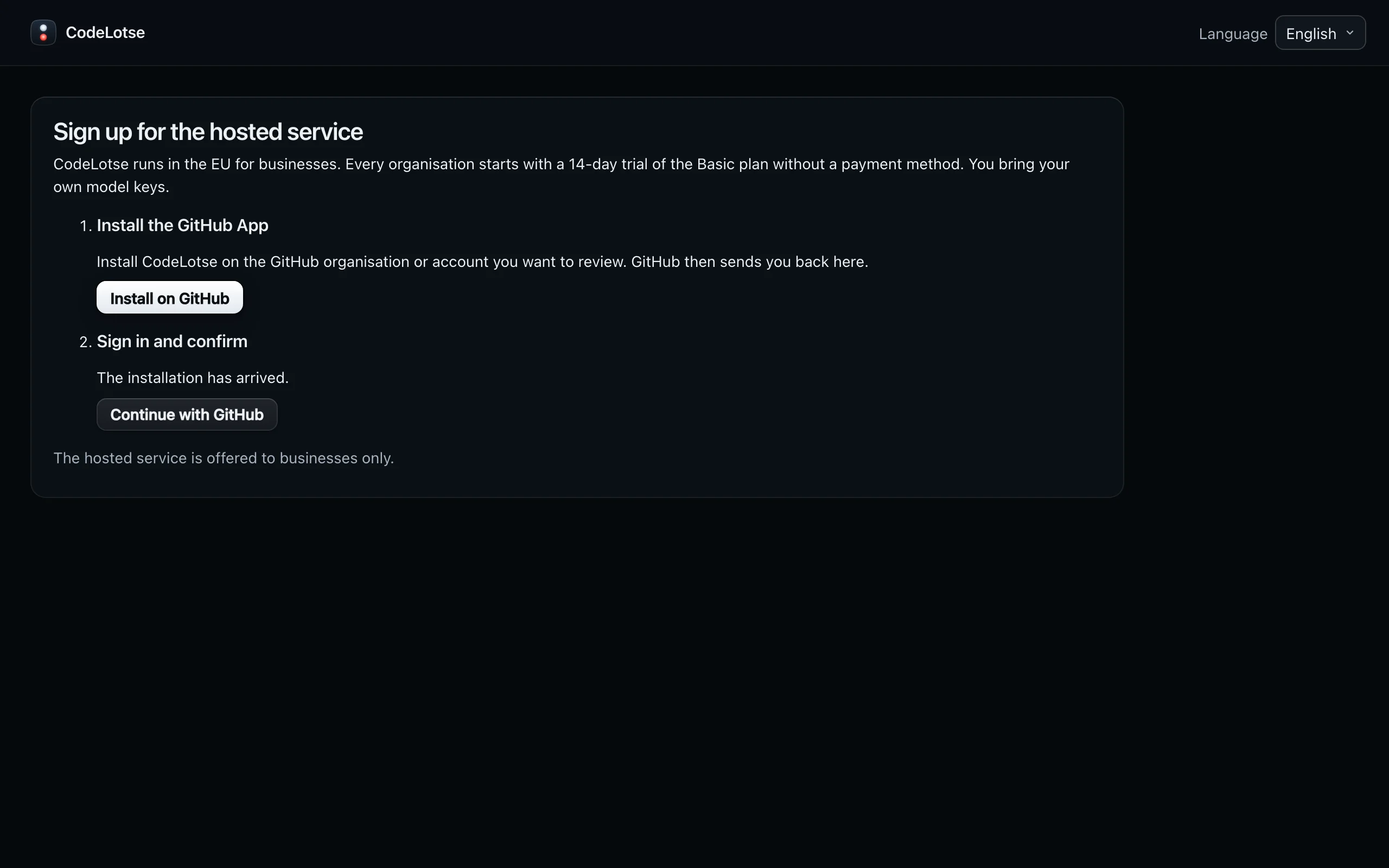
GitHub sends you back to the sign-up page. It waits until GitHub has reported the installation, which usually takes a few seconds, and then offers Continue with GitHub.
2. Sign in and claim the organisation ​
Sign in with GitHub. Owners of the GitHub organisation, and members of its admin team, become administrators of the CodeLotse organisation.
On Claim your organisation, enter the owner email. It is used for billing and service notices only. Read the terms of sale and the data processing agreement, tick the box to accept them on behalf of your organisation, and choose Claim and start the trial.
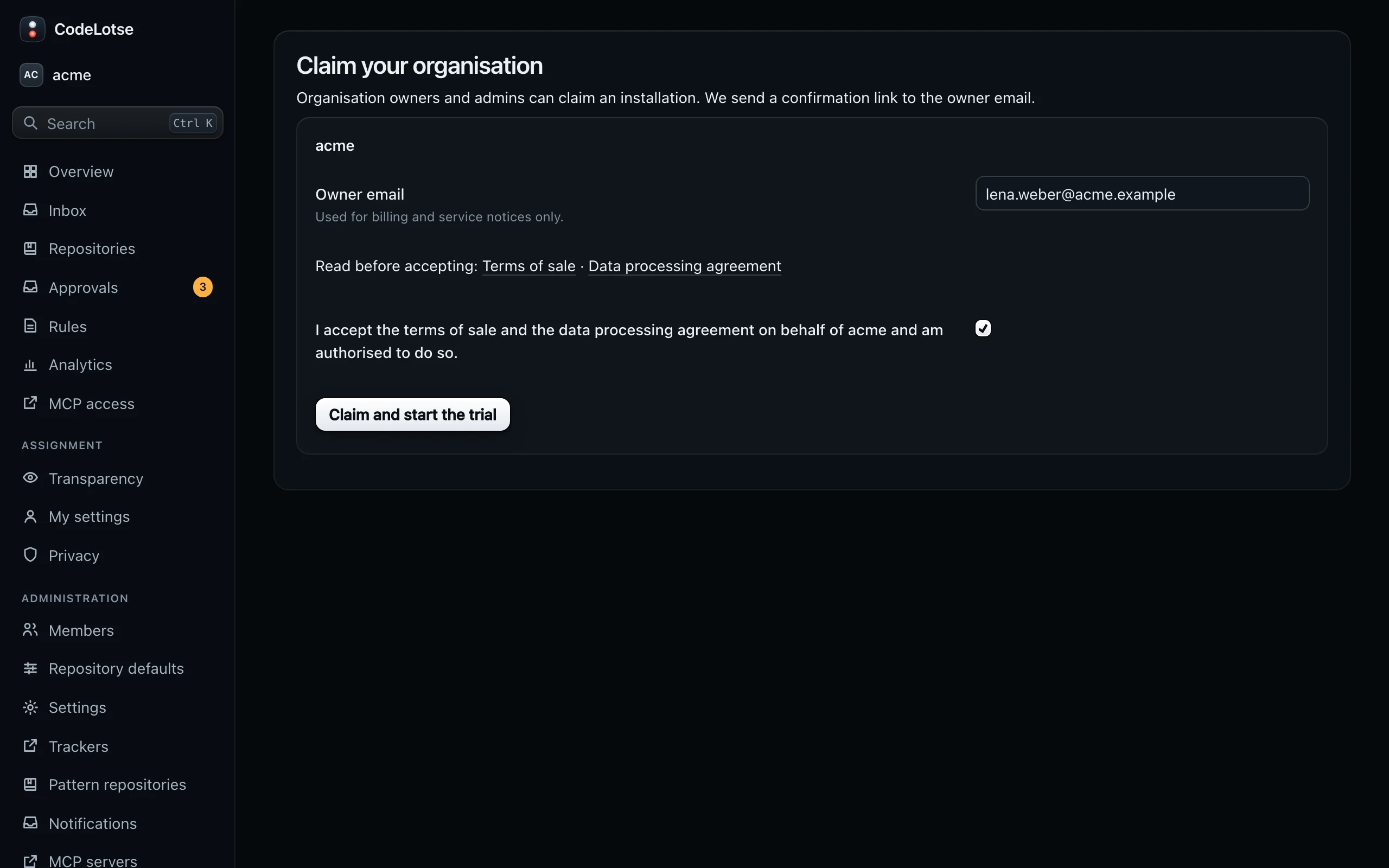
Claiming starts the 14-day trial of the Basic plan. No payment method is needed. Until an organisation is claimed, CodeLotse stores no content from GitHub and nobody can use it; an unclaimed installation is removed after 7 days.
3. Confirm the owner email ​
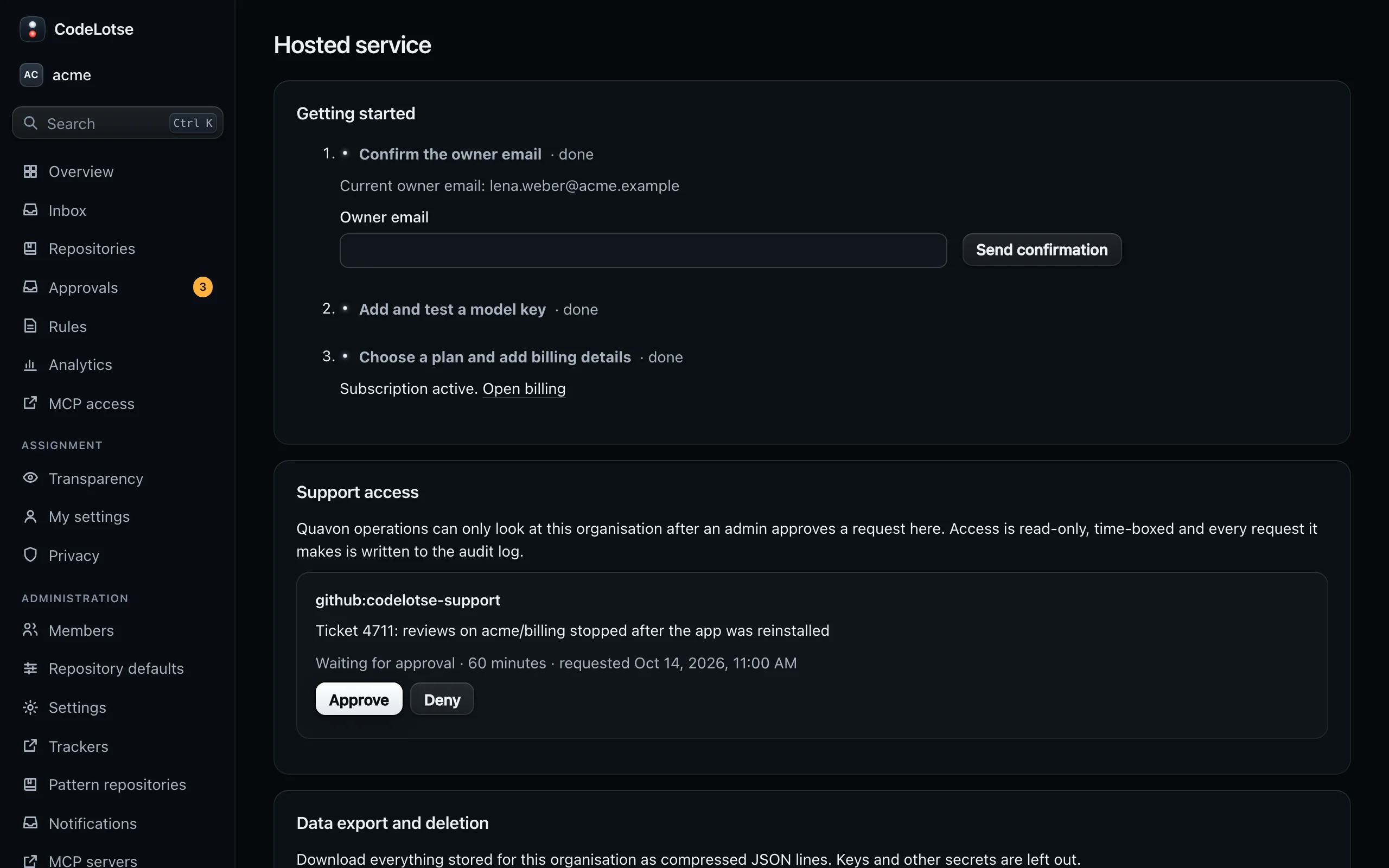
CodeLotse sends a confirmation link to the owner email. It is valid for 48 hours. Open it and choose Confirm email. If the mail did not arrive, send it again from the Hosted service page.
4. Add and test a model key ​
Open Settings of your organisation and add a key under the language model credentials. Run the connection test; reviews and triage start only once a key has passed it. Then choose which models CodeLotse uses for which work. See Models and keys.
The Hosted service page shows a checklist of these steps.
5. Choose how CodeLotse reviews ​
New repositories start in shadow mode: CodeLotse reviews pull requests but posts nothing, so you can judge the results in the web app first. When you are happy, switch a repository, or the defaults of the organisation, to a mode that publishes. See Repositories and policy.
6. Open a pull request ​
Open a pull request in a connected repository. CodeLotse reviews it within a few minutes. The result appears under Reviews of the repository, and, depending on the mode, as a review on the pull request.
Next steps ​
- Pull request reviews: what a review contains and how to work with it.
- Members and roles: who can change what.
- Plans and billing: choose a plan before the trial ends.